
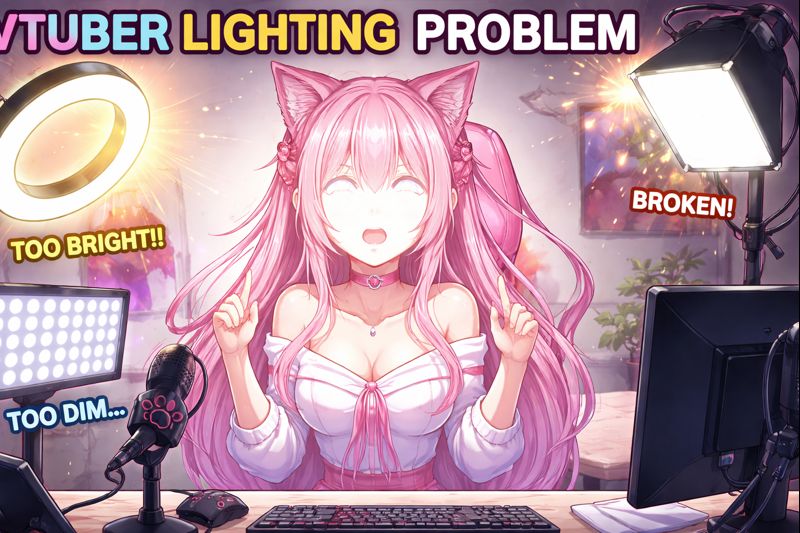
A VTuber lighting problem can break your stream faster than bad hardware or software.
Poor lighting causes tracking loss, flickering eyes, broken mouth movement, delayed expressions, and unstable face detection, even when your VTuber model and camera are high quality. Many creators try to fix these issues by changing software or buying new gear—when lighting is the real culprit.
If you’re struggling with a VTuber lighting problem, this guide explains why lighting affects VTuber performance, how to diagnose the exact issue, and step-by-step fixes that actually improve tracking and stream quality.
Who This VTuber Lighting Guide Is For
This guide is for you if:
- Your VTuber face tracking feels unstable
- Eyes flicker or half-blink constantly
- Mouth movement is inconsistent
- Tracking works sometimes but fails on stream
- Problems get worse at night or in low light
In VTubing, lighting quality matters more than camera quality.
Why VTuber Lighting Problems Happen
Face tracking relies on clear, evenly lit facial data.
When lighting is poor, tracking software must constantly re-interpret your face, which leads to:
- Expression jitter
- Delayed reactions
- Incorrect mouth shapes
- Tracking dropouts
This affects PNGTuber, Live2D, and 3D VTuber setups alike.
Helpful context:
Anchor text: VTuber Model Setup
Internal link suggestion: /vtuber-model-setup/
Most Common VTuber Lighting Problems (And Their Symptoms)
1. Insufficient Front Lighting
Symptoms:
- Face tracking drops randomly
- Mouth stops responding
- Eyes flicker or disappear
2. Uneven Lighting or Harsh Shadows
Symptoms:
- One side of the face tracks better
- Head turning breaks tracking
- Expressions feel asymmetrical
3. Backlighting or Overhead Lighting
Symptoms:
- Face becomes silhouette-like
- Tracking accuracy collapses
- Constant recalibration needed
4. Inconsistent Light Sources
Symptoms:
- Tracking changes during stream
- Camera exposure keeps adjusting
- Flicker when lights turn on/off
Lighting instability causes tracking instability.
Step-by-Step VTuber Lighting Problem Fix
Step 1: Position Your Primary Light Correctly
Best placement:
- In front of your face
- Slightly above eye level
- Centered or slightly off-center
Avoid:
- Lights behind you
- Lights directly overhead
- Side-only lighting
Your face should be evenly lit with minimal shadows.
Step 2: Use the Right Type of Light
Recommended Lighting
- Ring lights
- Soft LED panels
- Diffused desk lights
Avoid
- Bare bulbs
- Flashing RGB lights
- Screen-only lighting
Diffused light gives stable facial contours, which tracking software loves.
Helpful guide:
Anchor text: VTuber lighting setup
Internal link suggestion: /vtuber-lighting-setup/
Step 3: Control Light Consistency
Tracking hates changing light.
Fix this by:
- Turning off auto-brightness on your camera
- Blocking sunlight from windows
- Using one consistent light temperature
Use soft white (5000–5600K) whenever possible.
Step 4: Fix Lighting-Related Face Tracking Errors
Lighting problems often masquerade as tracking bugs.
If you see:
- Mouth not opening → lighting too dim
- Eyes jittering → shadows or glare
- Head movement lag → uneven exposure
Helpful fixes:
Anchor text: VTuber face tracking calibration guide
Internal link suggestion: /vtuber-face-tracking-calibration-guide/
Anchor text: VTuber tracking accuracy issues
Internal link suggestion: /vtuber-tracking-accuracy-issues/
Lighting must be fixed before recalibration works properly.
Step 5: Webcam vs iPhone – Lighting Sensitivity Differences
Webcam Tracking
- More sensitive to poor lighting
- Requires stronger, even illumination
iPhone Face Tracking
- More tolerant but still affected
- Performs best with clean front lighting
Helpful comparison:
Anchor text: VTuber webcam vs iPhone
Internal link suggestion: /vtuber-webcam-vs-iphone/
Even iPhones struggle with backlighting.
Step 6: OBS & Lighting Interaction
Lighting problems can worsen inside OBS.
Fix these:
- Disable camera auto-exposure in OBS
- Match camera and OBS color range
- Avoid heavy color filters
OBS processing + bad lighting = visible lag and desync.
Related fix:
Anchor text: VTuber OBS sync issue
Internal link suggestion: /vtuber-obs-sync-issue/
Beginner vs Advanced VTuber Lighting Setup
Beginner Lighting
- One ring light
- Front-facing
- Neutral color temperature
Advanced Lighting
- Two-point setup (key + fill)
- Consistent soft diffusion
- Manual camera exposure
Beginner guide:
Anchor text: VTuber setup for beginners
Internal link suggestion: /vtuber-setup-for-beginners/
Quick VTuber Lighting Problem Checklist
Before going live:
✔ Face evenly lit
✔ No harsh shadows
✔ No backlighting
✔ Light color consistent
✔ Camera exposure locked
If any item fails, tracking quality will suffer.
When Lighting Fixes Aren’t Enough
If lighting is correct but problems remain, check:
- Camera quality
- Face tracking calibration
- CPU/GPU overload
Related fixes:
Anchor text: VTuber low FPS fix
Internal link suggestion: /vtuber-low-fps-fix/
Anchor text: VTuber lag when streaming OBS
Internal link suggestion: /vtuber-lag-when-streaming-obs/
Lighting is foundational—but not the only factor.
When to Hire Professional Setup Help
Consider professional help if:
- Tracking never stabilizes
- You’ve tested multiple lighting setups
- You’re preparing a debut or rebrand
Anchor text: hire VTuber setup service
Internal link suggestion: /hire-vtuber-setup-service/
Professionals often fix lighting + tracking in a single session.
Final Thoughts
A VTuber lighting problem is not cosmetic—it’s technical.
Bad lighting causes:
- Broken tracking
- Viewer discomfort
- Stream instability
Good lighting gives you:
- Natural expressions
- Stable tracking
- Professional-looking streams
Before changing software, models, or hardware—fix your lighting first.