
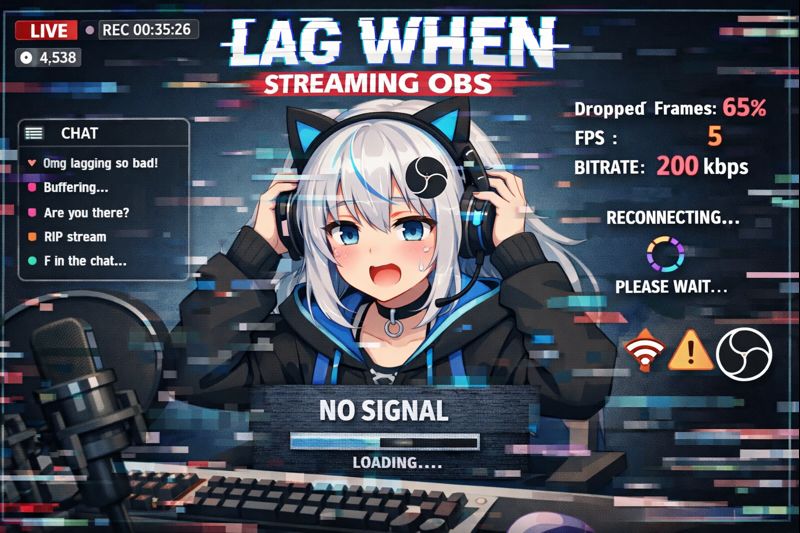
Experiencing VTuber lag when streaming with OBS is one of the most common and frustrating problems creators face—especially after upgrading a model, adding physics, or starting gameplay streams.
The good news:
In most cases, VTuber lag is not caused by your model being “too heavy,” but by incorrect OBS settings, system overload, or poor optimization across your tracking software, OBS, and hardware.
This guide explains why VTuber lag happens during OBS streaming, how to pinpoint the exact bottleneck, and how to fix lag permanently, whether you use Live2D, 3D (VRM), webcam tracking, or iPhone tracking.
Who This Guide Is For
This guide is for you if:
- Your VTuber model lags only when OBS is running
- FPS drops when you start streaming or recording
- Your model stutters during gameplay
- Face tracking becomes delayed or inaccurate on stream
- OBS preview looks fine, but stream output lags
If your model runs smoothly without OBS, this article is for you.
What “VTuber Lag When Streaming OBS” Actually Means
VTuber lag during OBS streaming usually means your system cannot process all tasks in real time.
A typical VTuber stream runs:
- Face tracking
- Model animation (Live2D or 3D)
- OBS encoding
- Game or content rendering
- Audio processing
If any one component overloads CPU, GPU, or memory, lag appears first in:
- Model movement
- Facial expressions
- Physics simulation
OBS does not cause lag alone—it exposes performance limits.
Step 1: Identify Where the Lag Comes From
Before changing settings, isolate the bottleneck.
Quick Test
- Run VTuber software alone
- Run OBS alone
- Run both together
- Add gameplay last
If lag starts only after OBS is added, your issue is encoding or rendering load, not tracking.
Related troubleshooting:
Anchor text: VTuber low FPS fix
Internal link suggestion: /vtuber-low-fps-fix/
Step 2: Fix OBS Output Settings (Most Common Cause)
Incorrect OBS output settings are the #1 cause of VTuber lag.
Recommended OBS Settings (Baseline)
- Output Resolution: 1280×720 or 1920×1080
- FPS: 30 (start here)
- Encoder: Hardware (NVENC / AMD / Apple)
- Preset: Performance or Quality (not Max Quality)
Common Mistakes
- Streaming 1080p60 on weak hardware
- Using x264 encoder on CPU-limited systems
- Running preview + recording + streaming simultaneously
Detailed tuning guide:
Anchor text: VTuber bitrate settings for OBS
Internal link suggestion: /vtuber-bitrate-settings-for-obs/
Step 3: Optimize Your VTuber Model (Live2D & 3D)
A beautiful model that isn’t optimized will lag under OBS load.
Live2D Optimization
- Reduce physics intensity
- Disable unused parameters
- Limit hair physics layers
- Use a “stream-safe” preset
3D Model Optimization
- Reduce polycount
- Downscale textures (4K → 2K)
- Disable unnecessary physics
- Avoid full-body tracking unless needed
Model performance issues often surface only when OBS starts encoding.
Related fix:
Anchor text: VTuber stream stuttering fix
Internal link suggestion: /vtuber-stream-stuttering-fix/
Step 4: Match Frame Rates Across All Software
Frame rate mismatch creates stutter and lag.
Best Practice
- VTuber software FPS = OBS FPS
- Avoid mixing 60 FPS tracking with 30 FPS OBS
Symptoms of Mismatch
- Model skips frames
- Mouth movement delayed
- Head motion feels choppy
If your model stutters but doesn’t freeze, FPS mismatch is likely the cause.
Step 5: Check GPU & CPU Load (Hidden Bottleneck)
Many creators assume GPU is the issue—but CPU overload is just as common.
Watch For
- CPU usage above 80%
- GPU spikes when OBS starts encoding
- RAM usage near full capacity
Fixes
- Close browsers and background apps
- Lower OBS preview resolution
- Disable unnecessary OBS filters
If lag appears only when a game launches, this is a resource contention problem, not a VTuber issue.
Step 6: Fix OBS Capture Method Issues
Incorrect capture methods can overload rendering.
Best Capture Choices
- Window Capture for VTuber software
- Game Capture for games
- Avoid Display Capture unless necessary
Display Capture is heavier and can cause unnecessary lag.
Related issue:
Anchor text: VTuber OBS VTuber model not moving
Internal link suggestion: /vtuber-obs-vtuber-model-not-moving/
Step 7: Improve Tracking Stability (Reduce Processing Load)
Unstable tracking increases CPU usage.
Tracking Tips
- Improve lighting to reduce tracking errors
- Place camera at eye level
- Avoid over-sensitive facial parameters
Better tracking = fewer correction calculations = less lag.
Helpful resources:
Anchor text: VTuber lighting setup
Internal link suggestion: /vtuber-lighting-setup/
Anchor text: VTuber face tracking calibration guide
Internal link suggestion: /vtuber-face-tracking-calibration-guide/
Beginner vs Advanced VTuber Streaming Setups
Beginner Setup (Low Lag Priority)
- Webcam tracking
- 720p30 stream
- Minimal physics
- Single PC
Advanced Setup
- iPhone tracking
- Optimized Live2D/3D model
- Dual PC or strong GPU
- Stream Deck hotkeys
Beginner-friendly guidance:
Anchor text: VTuber setup for beginners
Internal link suggestion: /vtuber-setup-for-beginners/
Quick VTuber Lag Fix Checklist
Before going live, confirm:
✔ OBS output settings optimized
✔ Hardware encoder enabled
✔ Model physics reduced
✔ FPS matched across software
✔ Background apps closed
✔ Capture methods correct
If lag persists after this list, professional tuning may be needed.
When You Should Hire Professional Setup Help
Consider expert help if:
- Lag appears even at low OBS settings
- Model becomes unusable during streams
- You’re preparing a debut or sponsored stream
- Troubleshooting time exceeds stream time
Anchor text: hire VTuber setup service
Internal link suggestion: /hire-vtuber-setup-service/
Professionals can eliminate lag without sacrificing visual quality.
Final Thoughts
If you experience VTuber lag when streaming OBS, remember:
- Lag is almost always technical, not artistic
- OBS exposes optimization weaknesses
- Small setting changes can produce massive improvements
With proper OBS tuning, optimized models, and balanced hardware usage, your VTuber stream can run smoothly, consistently, and professionally—even on mid-range systems.
Treat performance optimization as part of VTuber setup, not an optional extra, and lag will stop controlling your streams.