
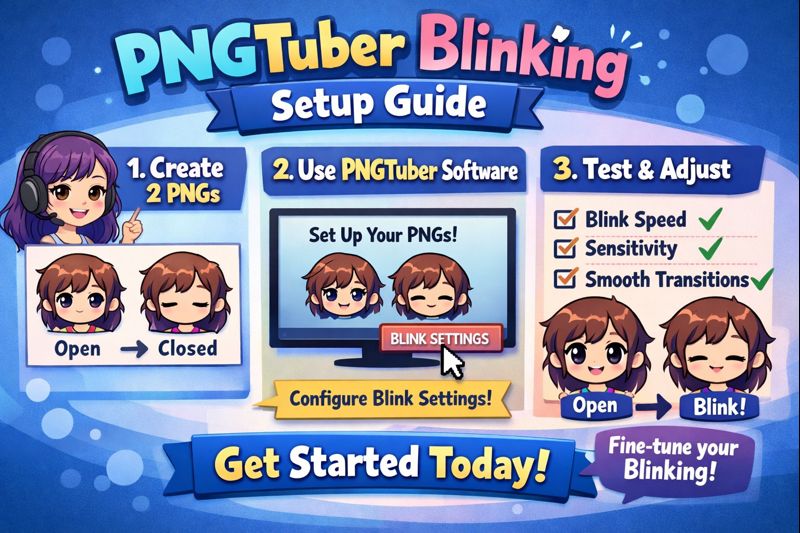
Blinking may seem like a small detail, but for a PNGTuber, it is one of the most important visual cues that separates a static image from a character that feels alive.
A PNGTuber that never blinks looks frozen and artificial.
A PNGTuber that blinks incorrectly looks distracting or broken.
This PNGTuber blinking setup guide explains exactly how blinking works in PNGTuber systems, how to configure it correctly, and how to avoid the most common mistakes that ruin immersion—without requiring facial tracking or expensive hardware.
If you are still deciding between avatar styles, read PNGTuber vs Live2D VTuber models before continuing.
What Blinking Does in a PNGTuber Setup
Unlike Live2D or 3D VTuber models, PNGTubers do not track real eye movement.
Blinking is simulated using image states and triggers.
Blinking helps:
- make your avatar feel responsive
- reduce the “static image” effect
- add rhythm and personality to reactions
- keep viewers visually engaged during talking pauses
Even simple blinking can dramatically improve perceived quality.
How PNGTuber Blinking Actually Works
PNGTuber blinking relies on state switching, not facial tracking.
Most setups use:
- an “eyes open” PNG
- an “eyes closed” PNG
- optional half-blink or expression variants
Blinking is triggered by:
- audio input
- timers
- hotkeys
- simple animation loops
There is no eye detection involved.
Common PNGTuber Blinking Methods
There are three primary blinking approaches used in PNGTuber setups.
Method 1: Audio-Triggered Blinking (Most Common)
Audio-triggered blinking links eye states to microphone input.
How It Works
- Voice detected → blink state triggered
- Silence → eyes return to default
Pros
- Easy to set up
- No manual input required
- Works well for talk-focused content
Cons
- Blinks may sync unnaturally with speech
- Silence can cause long unblinking periods
Best for:
- beginner PNGTubers
- podcast-style streams
- voice-over content
👉 Related fix: vtuber mic not working
Method 2: Timer-Based Blinking (Most Natural)
Timer-based blinking triggers eye changes at random or fixed intervals.
How It Works
- A timer switches eye states every X seconds
- Blink duration is manually controlled
Pros
- More natural blinking rhythm
- Independent of microphone quality
- Consistent visual behavior
Cons
- Requires basic configuration
- Less reactive to emotions
This method is ideal if you want your PNGTuber to feel alive even during silence.
Method 3: Hotkey or Manual Blink Control
Manual blinking uses keyboard or stream deck inputs.
Use Cases
- expressive reactions
- roleplay content
- comedic timing
Pros
- Full creative control
- No false triggers
Cons
- Requires practice
- Can distract the streamer
Often used in combination with timer blinking.
Recommended Blinking Timing Settings
Natural human blinking patterns:
- once every 3–6 seconds
- blink duration: 100–250ms
Recommended PNGTuber Values
- Blink interval: 4–5 seconds (randomized if possible)
- Closed-eye duration: 150–200ms
Avoid:
- blinking every time you speak
- blinks longer than 300ms
- perfectly timed blink loops
How to Create PNGTuber Blink Assets
Your blink assets matter as much as your settings.
Minimum Required Images
- Eyes open
- Eyes closed
Optional (Higher Quality)
- Half-blink
- Smiling eyes
- Tired or surprised eyes
Each additional state increases realism.
👉 Related guide: vtuber model file types & export guide
Blinking and Resolution Considerations
Blinking issues often come from mismatched image sizes.
Ensure:
- identical canvas size
- identical positioning
- consistent transparency
Misaligned PNGs cause:
- image jumping
- flicker
- unnatural motion
Blinking Inside OBS (Critical Step)
Your blinking setup must function correctly inside OBS, not just preview software.
Checklist:
- correct scene layering
- no duplicate sources
- transparency preserved
- frame rate consistent
Many “blinking bugs” only appear once streaming starts.
👉 Related fix: vtuber obs vtuber model not moving
Why Blinking Feels Broken on Stream (Common Causes)
| Problem | Likely Cause |
|---|---|
| No blinking | Trigger not firing |
| Rapid blinking | Over-sensitive audio |
| Eyes stuck closed | Wrong state priority |
| Blink delay | OBS or CPU overload |
👉 Performance help: vtuber low fps fix
PNGTuber Blinking vs Live2D Blinking
| Feature | PNGTuber | Live2D |
|---|---|---|
| Real eye tracking | No | Yes |
| Setup complexity | Low | Medium |
| Performance cost | Very low | Medium |
| Custom expressions | Limited | Extensive |
If blinking realism is a top priority, Live2D may be worth considering.
👉 Comparison guide: PNGTuber vs Live2D VTuber models
Beginner-Friendly PNGTuber Blinking Setup
Recommended for new creators:
- Timer-based blinking
- 2 eye states only
- No audio triggers
- Simple OBS scene
👉 Starter guide: vtuber setup for beginners
Advanced PNGTuber Blinking Techniques
For experienced PNGTubers:
- layered expressions
- hotkey-controlled reactions
- hybrid audio + timer logic
These techniques add personality without moving to Live2D.
When Blinking Isn’t Enough
If viewers still describe your avatar as:
- stiff
- lifeless
- robotic
You may need:
- more expression states
- better timing
- or a model upgrade
👉 Next step: vtuber model upgrade options
Final Thoughts
Blinking is one of the smallest visual elements in a PNGTuber—but also one of the most powerful.
A well-configured blinking system:
- makes your avatar feel present
- improves viewer comfort
- increases perceived quality
- costs nothing extra
Treat blinking as part of your character design, not a technical afterthought.