
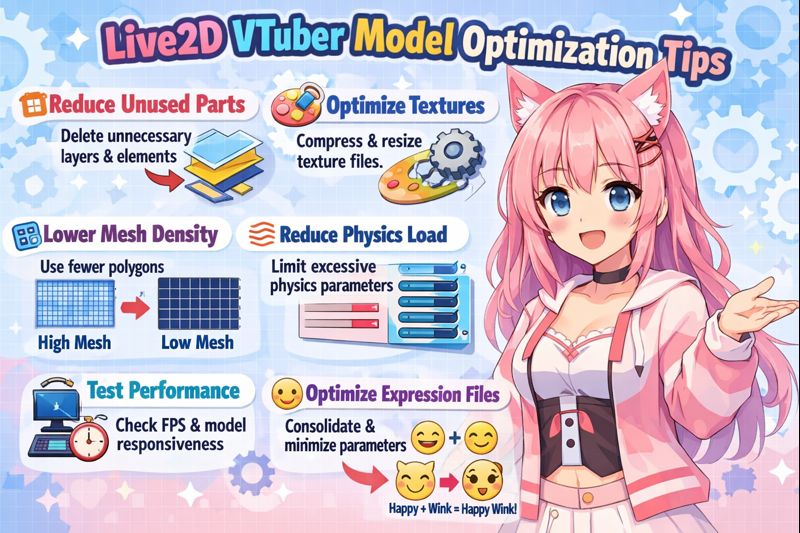
A Live2D VTuber model that looks beautiful but lags, jitters, or breaks during streams is not optimized.
Optimization is the difference between a model that:
- Works in short demos
- And one that survives long streams, fast movement, and real gameplay
Most creators assume optimization happens automatically during rigging. In reality, Live2D optimization is a separate discipline that combines rig design, tracking calibration, OBS configuration, and performance testing.
This guide shares proven Live2D VTuber model optimization tips used by professional VTubers to keep models smooth, stable, and reliable on stream.
If you’re still commissioning a model, read vtuber model commissions first.
What “Live2D Optimization” Actually Means
Optimization is not about making your model “simpler.”
It’s about making every movement intentional, efficient, and stable.
A fully optimized Live2D model:
- Tracks naturally without overreaction
- Uses CPU/GPU efficiently
- Maintains stable FPS for hours
- Looks consistent across lighting and cameras
👉 Supporting read: vtuber model creation process
Optimization Starts Before Rigging (Most People Miss This)
Many optimization problems begin before the rigging phase.
Key Pre-Rig Optimization Decisions
- Limit unnecessary accessories
- Avoid micro-details that won’t be visible on stream
- Design clean silhouettes and color contrast
- Plan expressions realistically (not 30 toggles)
Overdesigning early leads to performance debt later.
👉 Internal link: vtuber model hidden costs
Tip #1: Reduce Unnecessary Physics (More ≠ Better)
Physics are the biggest performance killer in Live2D models.
Common Over-Physics Issues
- Hair reacting to every micro movement
- Clothing wobbling excessively
- Accessories clipping during fast motion
Optimization Strategy
- Use physics only where motion adds meaning
- Reduce physics groups where possible
- Increase damping to avoid jitter
Professional rigs prioritize controlled motion, not chaos.
Tip #2: Optimize Mesh Density and Deformation
Too many meshes = higher CPU load.
Signs of Over-Meshing
- Lag when moving head quickly
- FPS drops during expressions
- Tracking feels delayed
Best Practice
- Use fewer meshes for flat areas
- Reserve dense meshes for face deformation
- Avoid unnecessary subdivisions
👉 Related fix: vtuber low fps fix
Tip #3: Limit Face Angle Range for Stability
Extreme angles look impressive in demos but often fail in real tracking.
Why This Matters
- Webcams and iPhones have physical limits
- Extreme angles cause distortion
- Tracking accuracy drops at extremes
Optimization Tip
- Use conservative angle ranges
- Prioritize natural front-facing motion
- Test angles with your actual camera
👉 Internal links:
- vtuber face tracking calibration guide
- vtuber tracking accuracy issues
Tip #4: Tune Mouth Parameters for Real Speech
Poor mouth optimization is the #1 immersion breaker.
Common Problems
- Mouth snapping open
- “Fish mouth” effect
- Desync with audio
Optimization Fix
- Lower mouth open sensitivity
- Smooth vowel transitions
- Test with real talking, not tapping sounds
👉 Supporting page: vtuber model mouth not moving
Tip #5: Create a “Lite” Performance Preset
Professional Live2D models often include two presets:
- High-detail (short streams, just chatting)
- Optimized (long streams, gaming)
What to Reduce in Lite Mode
- Physics intensity
- Secondary motion
- Idle animation complexity
This dramatically improves stream stability.
Tip #6: Optimize for OBS, Not Just Tracking Software
A model that runs smoothly in VTube Studio can still fail in OBS.
OBS-Related Optimization Issues
- Scene scaling overhead
- Transparency handling
- Audio sync latency
Best Practices
- Match OBS canvas resolution
- Avoid unnecessary filters
- Use browser/source capture efficiently
👉 Internal links:
- vtuber obs sync issue
- vtuber bitrate settings for obs
Tip #7: Lighting Optimization Improves Performance
Bad lighting forces tracking software to work harder.
Symptoms
- Tracking drift
- Jittery expressions
- Mouth not responding consistently
Fix
- Even frontal lighting
- Avoid harsh shadows
- Consistent color temperature
👉 Related guide: vtuber lighting setup
Tip #8: Test Optimization Under Real Load
Many creators only test while idle.
Proper Stress Test
- Game + Live2D + OBS
- Fast head movements
- Loud talking + expressions
- 30–60 minute continuous run
If it fails here, it will fail live.
👉 Internal link: vtuber setup step by step
Tip #9: Optimize File Structure and Naming
Messy files slow down troubleshooting and updates.
Best Practices
- Clear parameter naming
- Version control
- Documented expression lists
👉 Supporting read: vtuber model file types & export guide
Tip #10: Optimize for Your Hardware, Not “Ideal Specs”
Optimization must match your real setup.
Common Mismatch
- High-end rig on low-end PC
- Advanced physics on single-PC stream
- Heavy models with webcam tracking
👉 Essential read: vtuber setup pc requirements
Live2D Optimization Checklist (Save This)
Before debut or re-debut:
- ✔ Physics controlled and intentional
- ✔ Mesh density reasonable
- ✔ Mouth tracking tuned
- ✔ Face angles limited
- ✔ OBS tested
- ✔ Long-stream stress test passed
- ✔ Lite preset available
When to Hire Professional Optimization Help
Consider expert help if:
- FPS drops persist
- Tracking feels unnatural
- OBS issues keep returning
- You’re preparing a major debut
👉 CTA / money page: hire vtuber setup service
Final Thoughts
The best Live2D VTuber models aren’t the most complex.
They are the ones that:
- Feel natural
- Perform reliably
- Survive long streams
- Respect hardware limits
By applying these Live2D VTuber model optimization tips, you transform your model from “pretty” into professional-grade.
Recommended next reads:
- live2d vtuber model mistakes
- vtuber model setup
- vtuber model cost full pricing guide