
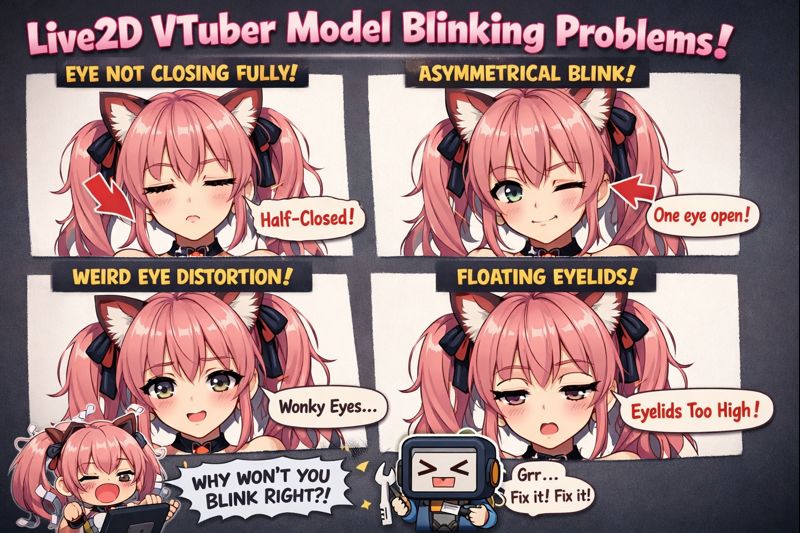
Blinking problems are one of the most common—and most distracting—issues in Live2D VTuber models.
If your model:
- blinks too often,
- barely blinks at all,
- half-blinks constantly,
- closes its eyes when talking,
- or desyncs eye movement during streams,
you’re not dealing with an “art problem.”
You’re dealing with tracking, parameter mapping, or physics configuration issues.
This guide breaks down Live2D VTuber model blinking problems step by step, explains why they happen, how to fix them properly, and how to tune blinking so it looks natural, stable, and stream-ready.
If you’re new to Live2D, start with vtuber model creation process before troubleshooting blinking.
Why Blinking Matters More Than You Think
Blinking is one of the strongest subconscious signals viewers notice.
Bad blinking causes:
- uncanny or “creepy” appearance
- viewer discomfort over long streams
- perception of poor model quality
- distraction from content
Good blinking:
- makes expressions feel human
- stabilizes eye tracking
- improves perceived professionalism
Blinking is not cosmetic—it’s behavioral animation.
Common Live2D VTuber Blinking Problems (Symptoms)
Most creators experience one or more of these:
- Eyes constantly half-closed
- Rapid blinking every few seconds
- Eyes closing when mouth opens
- One eye blinking differently than the other
- Blinking stops after a few minutes of streaming
- Blinking looks fine in preview but breaks in OBS
Each symptom has a specific technical cause, not a random fix.
How Live2D Blinking Actually Works (Simplified)
Blinking is controlled by a combination of:
- Input: eye openness tracking from camera/iPhone
- Parameters: EyeOpenL / EyeOpenR
- Deformers: eyelid mesh movement
- Physics (optional): secondary eyelid motion
- Auto blink logic (if enabled)
If any one layer is misconfigured, blinking breaks.
👉 Supporting read: vtuber face tracking calibration guide
Root Causes of Live2D VTuber Blinking Problems
1. Eye Open Parameter Range Is Incorrect
Most blinking issues start here.
Problems include:
- EyeOpen range too narrow
- Neutral face not set correctly
- EyeOpen minimum too high
Result:
- Constant half-blink
- Eyes never fully open or closed
Fix:
Recalibrate neutral face and widen EyeOpen range gradually.
👉 Internal link: vtuber tracking accuracy issues
2. Auto Blink Conflicts With Face Tracking
Auto blink is useful—but dangerous if misused.
Common conflict:
- Auto blink triggers while real tracking is active
Result:
- Double blinking
- Random eye closures
- Desync during talking
Fix:
Disable auto blink when using live face tracking, or reduce its frequency significantly.
3. Over-Sensitive Camera or iPhone Tracking
Tracking sensitivity that’s too high causes:
- Micro eye movements detected as blinks
- Rapid flickering
This is extremely common with webcams.
Fix:
- Increase blink threshold
- Improve lighting (yes, lighting affects blinking)
👉 Helpful read: vtuber lighting setup
4. Poor Lighting Conditions
Lighting directly affects eye tracking accuracy.
Bad lighting causes:
- false blink detection
- inconsistent eye openness values
- blinking spikes during head movement
Fix:
- Use even front-facing light
- Avoid shadows across eyes
- Reduce backlighting
👉 Internal link: vtuber lighting problem
5. Physics Applied to Eyelids (Often a Mistake)
Physics on eyelids often:
- adds wobble
- delays blink response
- causes asymmetry
Professional rule:
Avoid physics on eyelids unless you fully understand the trade-offs.
👉 Related guide: live2d vtuber model physics settings explained
6. Parameter Linking Errors (Left/Right Eye)
Common rigging error:
- EyeOpenL and EyeOpenR linked inconsistently
- One eye has different deformation limits
Result:
- uneven blinking
- “lazy eye” effect
This is a rigging issue, not tracking.
Step-by-Step: How to Fix Live2D Blinking Problems
Step 1: Fix Tracking First (Before Touching Live2D)
- Camera at eye level
- Neutral face properly captured
- Stable lighting
- No background glare
👉 Supporting read: vtuber webcam vs iphone
Step 2: Calibrate Eye Open Parameters
Inside your tracking software:
- Set neutral eye position
- Confirm full open / full closed values
- Test slow blinks manually
Never jump straight to extremes.
Step 3: Disable or Reduce Auto Blink
If using face tracking:
- Turn auto blink off
- Or set long intervals (8–12 seconds)
Let real tracking drive blinking whenever possible.
Step 4: Test Inside OBS (Not Just Preview)
OBS introduces:
- frame delay
- performance load
- sync changes
Many blinking problems appear only inside OBS.
👉 Internal link: vtuber obs sync issue
Step 5: Stress Test for 10–15 Minutes
Test:
- talking
- smiling
- fast head turns
- expression toggles
Blinking must remain stable under load.
Advanced Blinking Tuning (Pro-Level)
Natural Blink Frequency
- Humans blink every ~4–6 seconds at rest
- Reduce frequency during speech
- Avoid synchronized blinking with mouth movement
Asymmetric Blinks (Optional)
- Slight delay between eyes improves realism
- Use very subtle offsets only
Blink Suppression During Expressions
- Prevent blinking during extreme expressions
- Avoid eye clipping
Blinking Problems That Are NOT Tracking Issues
Some blinking issues require artist fixes, not settings:
- eyelid mesh deformation errors
- incorrect layer separation
- extreme eye shapes without proper range
If fixes fail, review your Live2D asset quality.
👉 Supporting read: live2d vtuber model mistakes
Quick Blinking Troubleshooting Checklist
Before going live:
- ✔ Neutral eye calibrated
- ✔ Auto blink reviewed
- ✔ Lighting stable
- ✔ No eyelid physics conflicts
- ✔ OBS tested for 15+ minutes
When to Get Professional Help
Consider expert help if:
- Blinking breaks only on stream
- One eye behaves differently
- Adjustments make things worse
- You’re preparing a debut or rebrand
👉 CTA: hire vtuber setup service
Final Thoughts
Blinking problems are rarely random.
They are the result of:
- incorrect calibration
- conflicting systems
- misunderstood settings
Once blinking is tuned correctly, your model instantly feels:
- more human
- more comfortable to watch
- more professional
Fix blinking before adding fancy physics or expressions.