
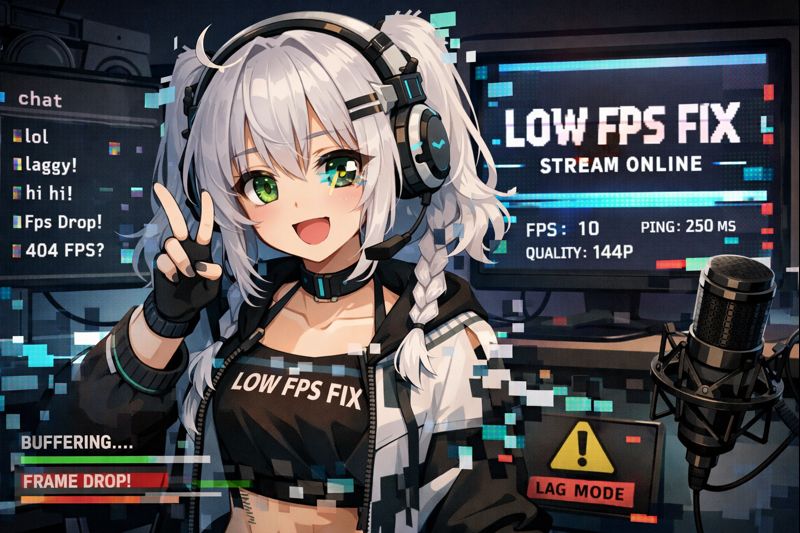
Low FPS is one of the fastest ways to ruin a VTuber stream.
When your FPS drops, your VTuber model feels laggy, delayed, stiff, or uncomfortable to watch, even if your art is high quality. Viewers may not always complain—but they leave sooner, engage less, and perceive your stream as unprofessional.
If you’re searching for a VTuber low FPS fix, this guide explains why FPS drops happen, how to identify the real bottleneck, and step-by-step fixes that actually work for VTuber setups—not generic gaming advice.
Who This VTuber Low FPS Guide Is For
This guide is for you if:
- Your VTuber model stutters or feels delayed
- FPS drops when you move your head or talk
- FPS is fine offline but bad while streaming
- Lag worsens during longer streams
- Lowering graphics doesn’t fully fix it
Low FPS is never random. It always comes from hardware strain, software overload, or poor optimization.
What “Low FPS” Actually Means for VTubers
Low FPS in VTubing usually comes from rendering overload, not internet issues.
This is different from dropped frames.
- Low FPS → your PC can’t render frames fast enough
- Dropped frames → OBS can’t send frames reliably
Before fixing anything, confirm this.
How to Check
- Open OBS → Stats
- Watch FPS, Rendering Lag, and CPU/GPU usage
If FPS drops locally, you’re dealing with rendering or tracking overload.
Helpful context:
Anchor text: VTuber Model Setup
Internal link suggestion: /vtuber-model-setup/
Top Causes of Low FPS in VTuber Streams
1. VTuber Model Is Too Heavy
The #1 cause.
Common problems:
- Excessive Live2D physics
- Large texture sizes
- Too many expressions and toggles
- High-poly 3D models
2. GPU Overload
Your GPU is often doing:
- VTuber rendering
- Face tracking
- OBS compositing
- Gameplay
This stacks quickly.
3. CPU Bottlenecks
Especially common when:
- Using x264 encoding
- Running tracking + OBS + game
- Browser sources are open
4. OBS Resolution & FPS Too High
Many VTubers stream at settings they don’t need.
5. Background Apps & Overlays
Browsers, Discord, launchers, RGB software—all steal resources.
Step-by-Step VTuber Low FPS Fix (In the Right Order)
Step 1: Identify What Is Causing FPS Drops
Ask these questions:
- Does FPS drop even without OBS streaming?
- Does FPS drop when model moves?
- Does FPS drop only when gaming?
This tells you whether the issue is:
- Model-related
- OBS-related
- Game-related
Step 2: Optimize Your VTuber Model (Most Important Fix)
Live2D FPS Fixes
- Reduce physics strength and count
- Disable unused parameters
- Lower texture resolution if possible
- Create a “stream-safe” preset
3D VTuber FPS Fixes
- Lower polycount
- Downscale textures (4K → 2K)
- Disable unnecessary physics
- Use optimized VRM versions
Helpful guide:
Anchor text: VTuber model file types & export guide
Internal link suggestion: /vtuber-model-file-types-export-guide/
Most FPS issues disappear after model optimization alone.
Step 3: Fix GPU Bottlenecks (Rendering Lag)
Immediate GPU FPS Fixes
- Lower OBS canvas resolution
- Reduce model size on screen
- Close GPU-heavy apps
- Disable preview in OBS when possible
Recommended OBS Settings
- Output resolution: 1280×720 or 1600×900
- FPS: 30 (use 60 only if stable)
Related fix:
Anchor text: VTuber lag when streaming OBS
Internal link suggestion: /vtuber-lag-when-streaming-obs/
Step 4: Fix CPU Bottlenecks
CPU-Saving Actions
- Switch OBS encoder to NVENC
- Close browser tabs & extensions
- Disable unnecessary plugins
If Using x264
- Use “Veryfast” or “Faster” preset
- Avoid single-PC gaming + streaming
CPU overload causes progressive FPS decay during streams.
Step 5: Fix Tracking-Related FPS Drops
Tracking itself can tank FPS.
Common Tracking FPS Issues
- Over-sensitive mouth tracking
- Constant eye recalculation
- Poor lighting causing reprocessing
Fixes
- Recalibrate face tracking
- Improve lighting (huge impact)
- Limit tracking range
Helpful guides:
Anchor text: VTuber face tracking calibration guide
Internal link suggestion: /vtuber-face-tracking-calibration-guide/
Anchor text: VTuber lighting setup
Internal link suggestion: /vtuber-lighting-setup/
Step 6: OBS Scene & Source Optimization
Bad OBS scenes = guaranteed low FPS.
Fix These Immediately
- Remove unnecessary filters
- Avoid nested browser sources
- Limit animated overlays
- Match canvas and output resolution
OBS complexity matters more than most VTubers realize.
Step 7: Fix FPS Drops Over Time (Thermal & Memory Issues)
If FPS drops after 30–60 minutes:
Likely Causes
- Thermal throttling
- Memory leaks in tracking software
- Accumulated background tasks
Fixes
- Monitor CPU/GPU temps
- Restart tracking software before stream
- Reduce physics for long sessions
Related stability fix:
Anchor text: VTuber stream stuttering fix
Internal link suggestion: /vtuber-stream-stuttering-fix/
Beginner vs Advanced VTuber FPS Optimization
Beginner Setup
- Webcam tracking
- 720p / 30 FPS
- Minimal physics
- Single PC
Advanced Setup
- iPhone tracking
- Dual PC
- Model performance presets
- Stream Deck hotkeys
Beginner guide:
Anchor text: VTuber setup for beginners
Internal link suggestion: /vtuber-setup-for-beginners/
Quick VTuber Low FPS Fix Checklist
Before going live:
✔ Model optimized
✔ OBS resolution reasonable
✔ GPU usage under control
✔ CPU encoding stable
✔ Tracking calibrated
✔ 10-minute test recording reviewed
If FPS drops persist, something fundamental is still wrong.
When You Should Hire Professional Optimization
Consider professional help if:
- FPS issues persist after optimization
- You don’t know which component is failing
- You’re preparing a debut or rebrand
- You want guaranteed stability
Anchor text: hire VTuber setup service
Internal link suggestion: /hire-vtuber-setup-service/
Expert tuning often fixes issues in hours, not weeks.
Final Thoughts
A proper VTuber low FPS fix is not about buying new hardware first.
Most FPS problems come from:
- Overloaded VTuber models
- Poor OBS configuration
- Inefficient tracking setups
- Unnecessary visual complexity
Once fixed, your stream becomes:
- Smooth
- Responsive
- Comfortable to watch
- Professionally stable
Low FPS isn’t just a technical issue—it’s a viewer experience problem.
Fix it once, and your VTuber stream will finally feel right.